
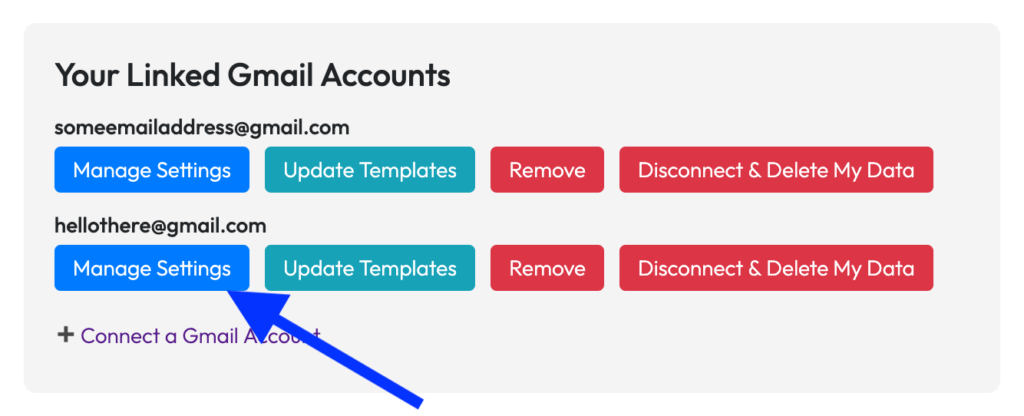
Once you have connected a Gmail account, you can then configure the available options for that account by clicking the Manage Settings button in the Your Linked Gmail Accounts area of the dashboard.
There you can configure the following options:
- Signature: Here you can specify the signature that should be placed at the bottom of each automatically drafted email response.
- Email Tone: Here you can modify the tone of the automatically drafted email response.
- Gmail Alias: Here you can specify which alias (that you have configured in Gmail) that Promptly Mail should index past emails from.
- Skip Addresses: Here you can specify email address for which you don’t want Promptly Mail to draft an auto reply.
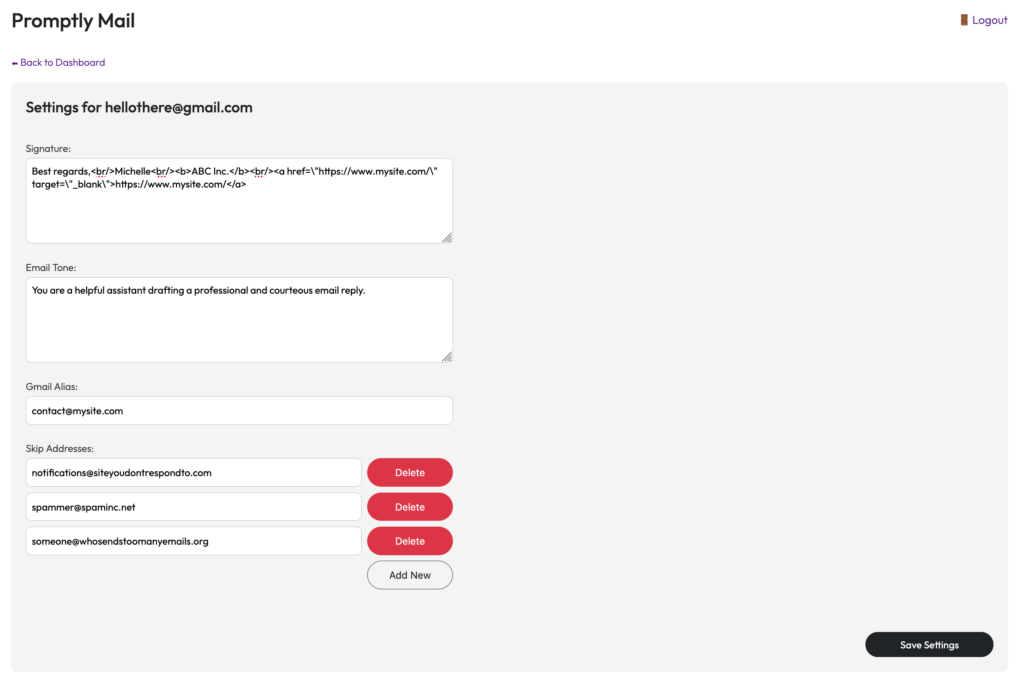
After making your changes, don’t forget to click the Save Settings button.