In addition to analyzing the content of the email and crafting a reply based on that, Promptly Mail can also pull info/content from templates that you create in your Gmail account. This is a great way to have Promptly Mail generate accurate and appropriate replies.
Setting this up is simple. Promptly Mail will look in the Drafts folder of your Gmail account for any message there that has the PM – Template label. So, to create an email/reply that can be used by Promptly Mail as a template, just compose a new message in your Gmail with the content that you want, leave that message as a draft and assign it the PM – Template label. That’s it!
Doing this is especially useful for inquiries that you get frequently. Maybe questions about prices or licensing for your product, questions about shipping, questions about hiring, etc. Promptly Mail will look to these templates first, so, by putting your own custom content in these drafts, you’re guaranteeing that your automatically-generated emails will be on point each time.
Updating templates in Promptly Mail
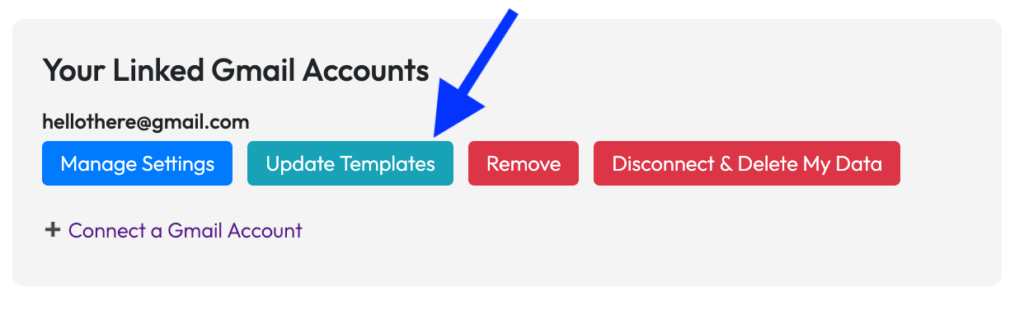
Whenever you add new draft templates or modify existing ones in your Gmail account, make sure you sync that back with Promptly Mail. To do this, just log in to your dashboard and, in the Your Linked Gmail Accounts section, click the Update Templates button for the corresponding Gmail account.